MediBill Lite Manual
Learn how to setup, manage medicines, and bill offline with MediBill Lite.
🚀 1. Installation & Activation Settings
Before you begin billing, setup your shop information. These settings configure your printed headers and receipt configurations:
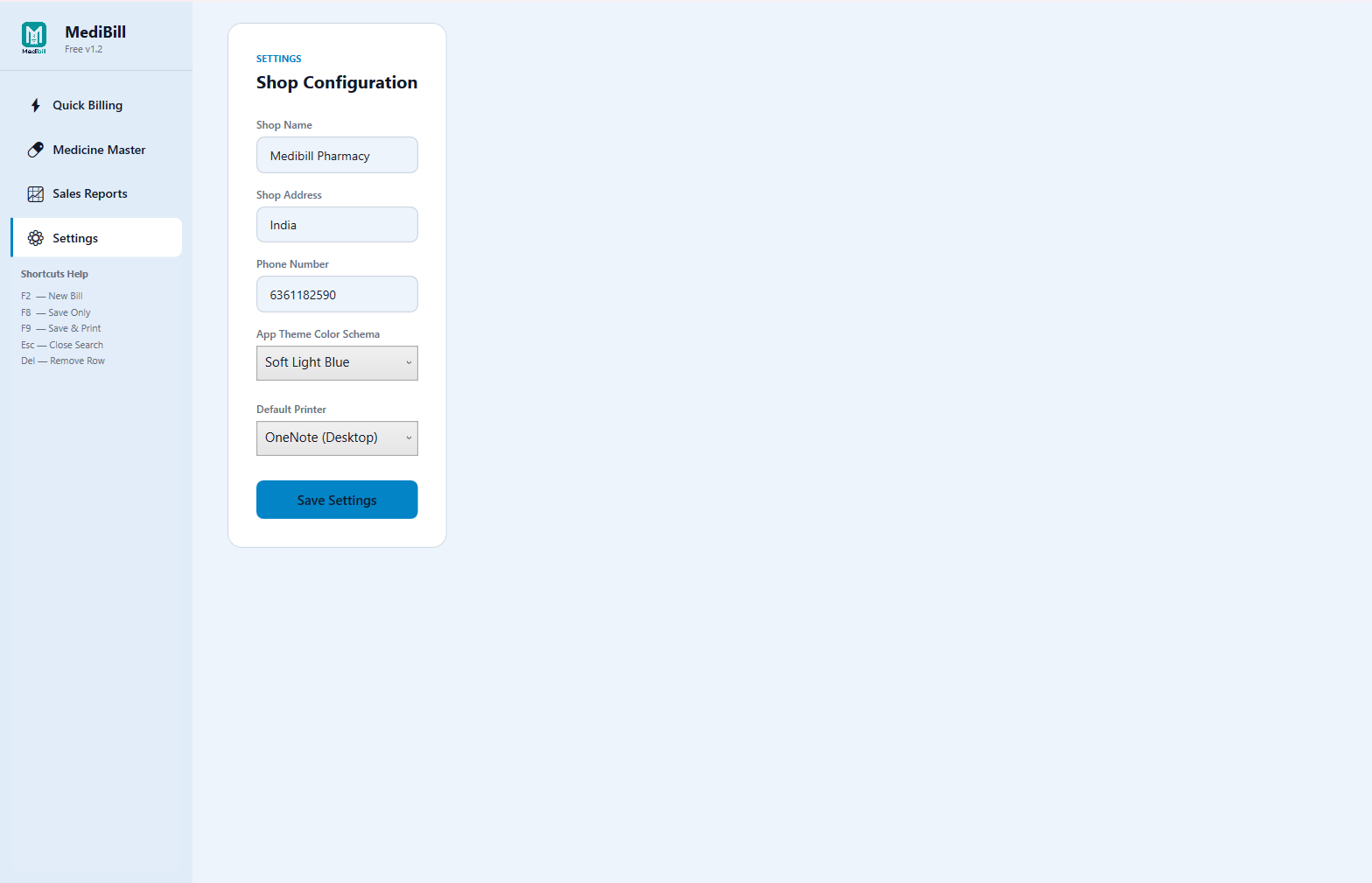
- Step 1: Enter your Shop Name, Address, and Phone Number. These will automatically align at the top of your bills.
- Step 2: Select your Printer Size (Choose between A4 Sheets or standard 3-Inch Thermal receipt rolls).
- Step 3: Save the setup. You do not need to repeat this unless your business info changes.
📦 2. Medicine Master inventory Setup
MediBill Lite stores your product database offline. Add your medicines here for lightning-fast autocomplete during billing:
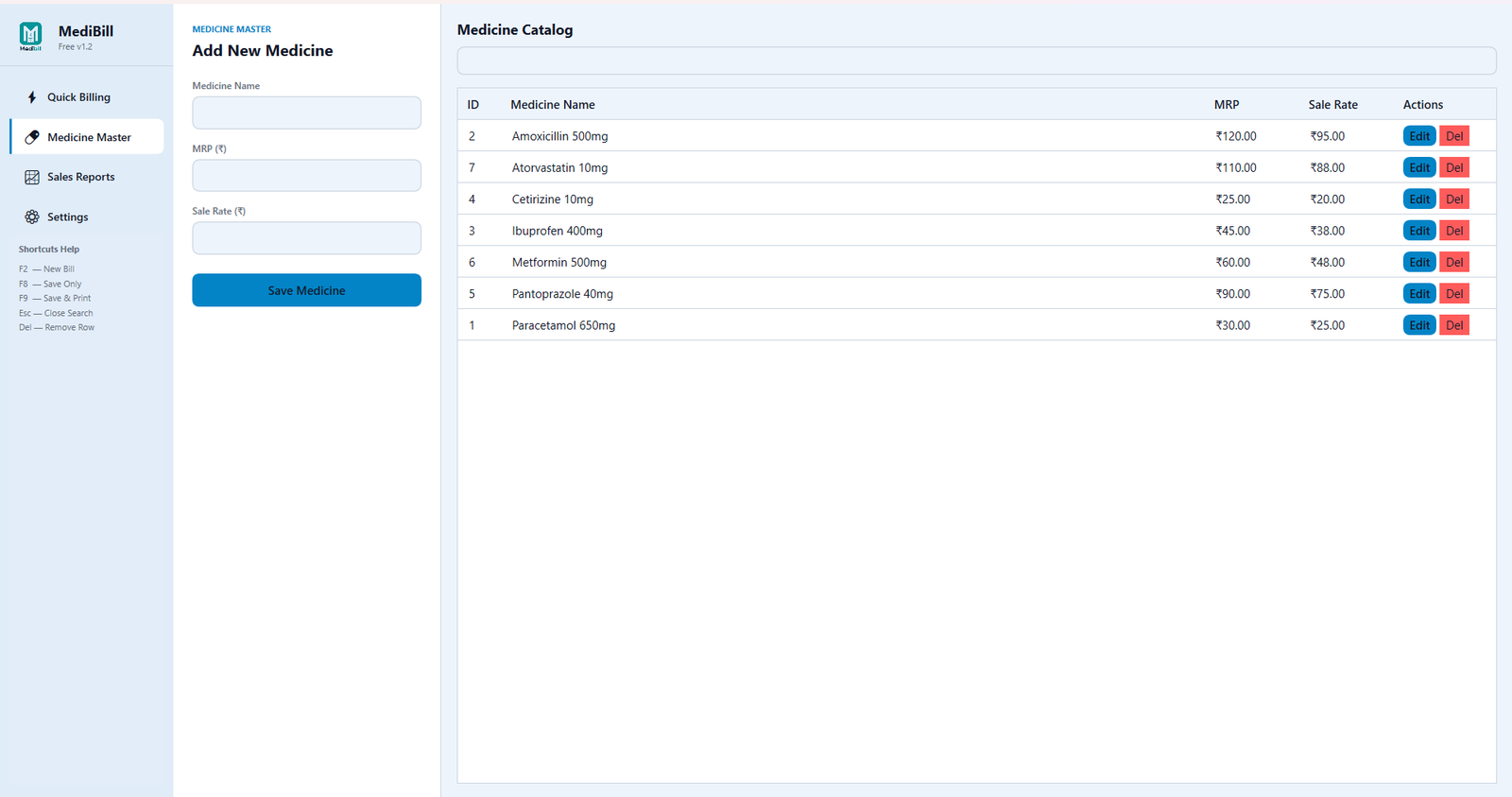
- Step 1: Navigate to the Medicine Master tab in the menu.
- Step 2: Input the Medicine Name (exactly as you want it shown on invoices).
- Step 3: Specify the MRP and your counter's discounted Sale Rate.
- Step 4: Click add. The medicine is now indexed locally and will appear in autocomplete searches.
⚡ 3. Lightning-Fast Quick Billing
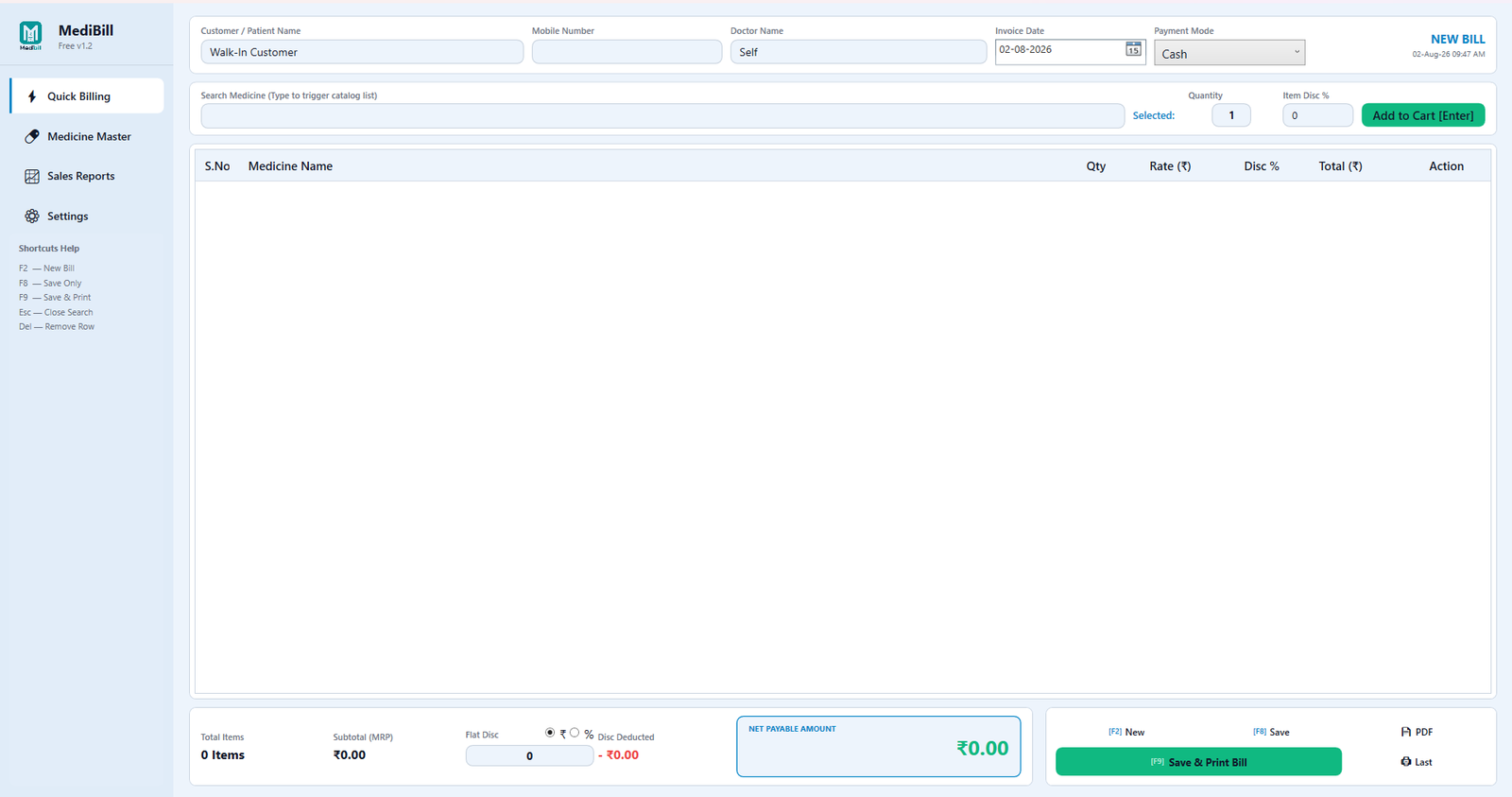
The billing dashboard is designed for high-density, keyboard-first operations to speed up chemist checkouts:
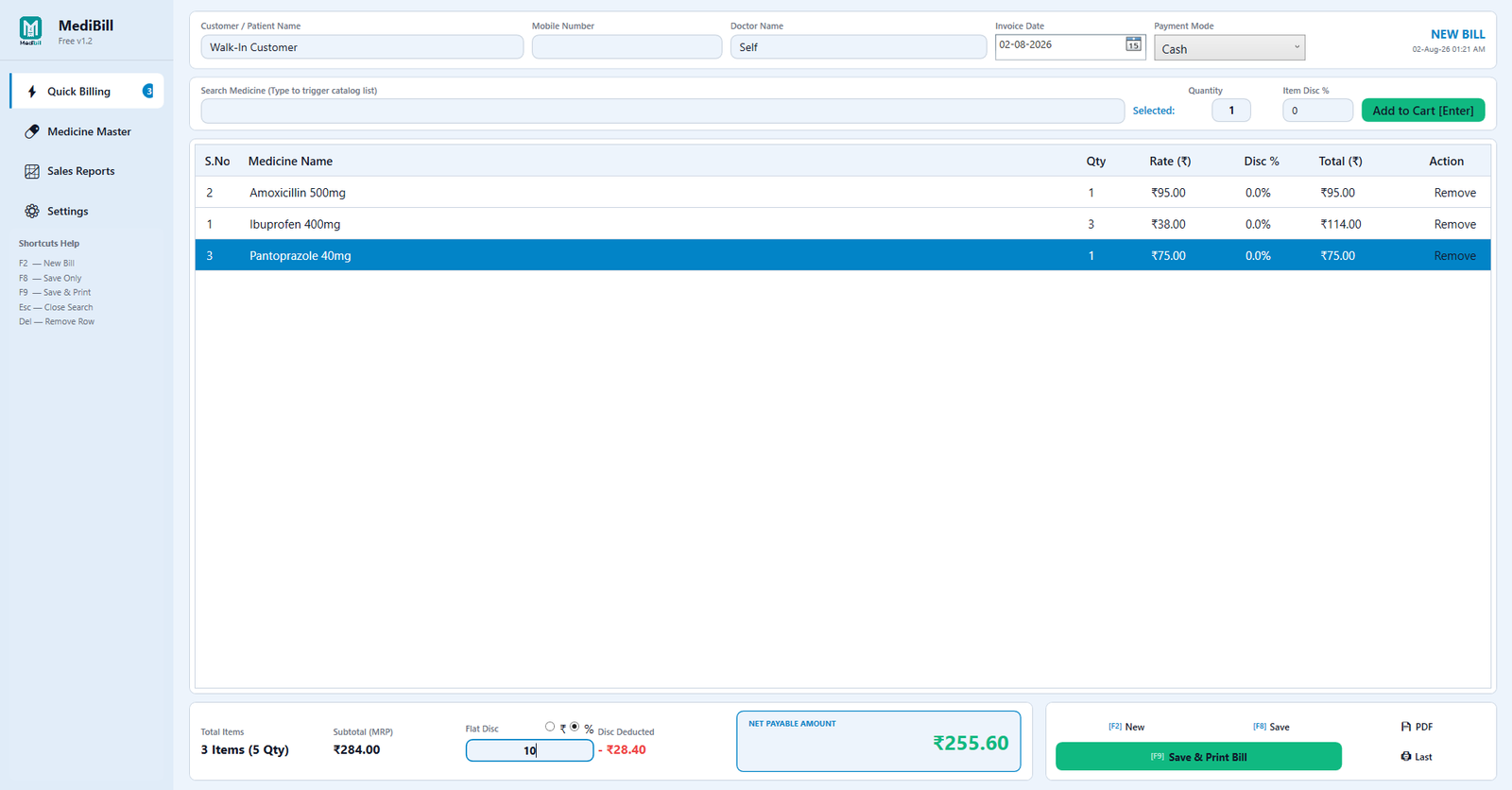
- Step 1: Type the medicine name in the search bar. Hit Enter to quickly select and add it.
- Step 2: Press the tab key to navigate fields. Enter quantity and discount percentages if applicable.
- Step 3: Specify the payment details (e.g. Cash, UPI, or Due) to register invoices in reports.
- Step 4: Click Print. The browser printing modal launches instantly, formatting an A4 or thermal draft.
📊 4. Sales Tracking & CSV Exports
Keep logs of all customer invoices. Filter transaction history and download data for tax calculations:
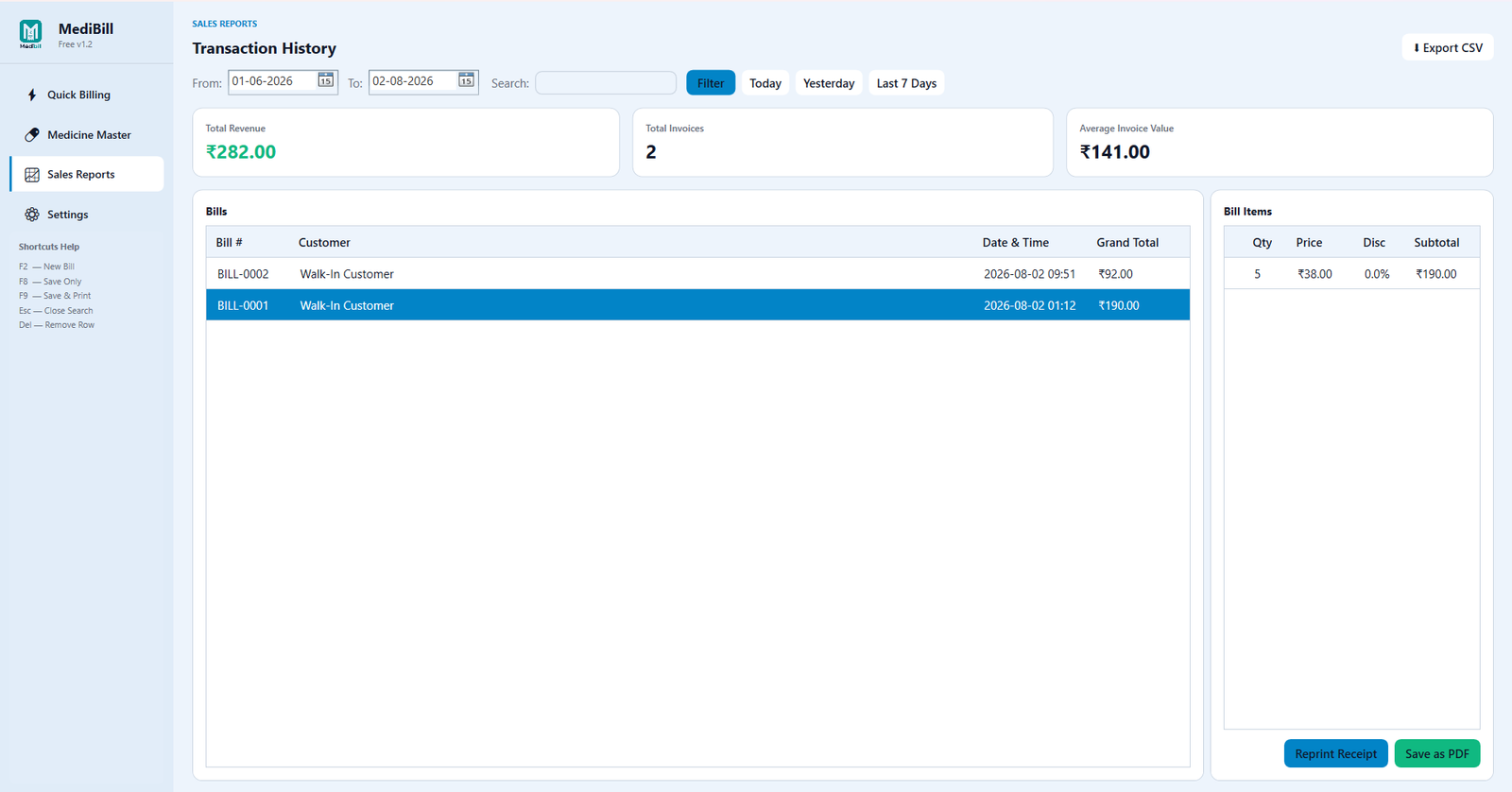
- Step 1: Open the Ledger & Reports page to review cumulative transactions.
- Step 2: Enter start/end bounds in the customizable date filters to query specific windows.
- Step 3: Review the daily list of client orders and outstanding amounts.
- Step 4: Click Export CSV to save a clean spreadsheet on your computer for bookkeeping.
🏠 5. Home Dashboard Stats
Monitor your daily sales performance and pharmacy activity overview upon launching the application:
- Daily Bills Generated: View the absolute count of invoices printed today.
- Daily Gross Sales Revenue: Check the combined rupee value of UPI and Cash transactions today.
- Offline Standalone Data: Statistics update locally without needing an internet connection.
📄 6. Sample Printed Invoice Layout
View how the printed receipt is structured to show a clean format to your retail clients:
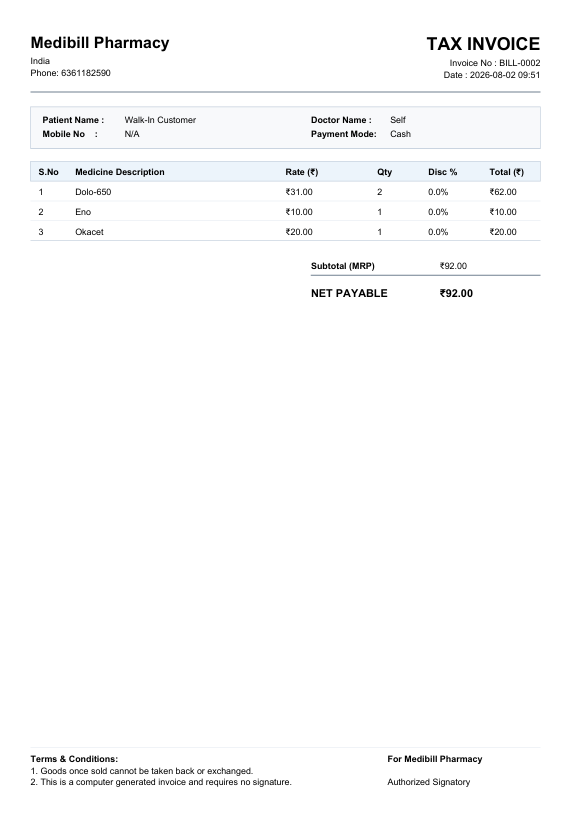
Invoices compile your customized shop name, telephone, client name details, item list table, discounts, payment tags, and sales terms neatly. Designed to print perfectly on both standard papers and thermal margins.